Choose the destination
Click into a writable text field in Mail, Messages, Notes, a browser, your code editor, or another Mac app.
Voice typing across macOS
Put the cursor where the words belong, press your shortcut, and speak. Vocis turns that thought into text without making you open another editor or copy from a transcript window.
One shortcut · no app switching
Transcript also remains on the clipboard
Vocis works from a global shortcut and inserts text into the focused writable field in your current Mac app.
The shortest path
The window you are already in stays in front. Vocis lives in the menu bar and uses a global shortcut, so dictation begins where the writing needs to end.
Click into a writable text field in Mail, Messages, Notes, a browser, your code editor, or another Mac app.
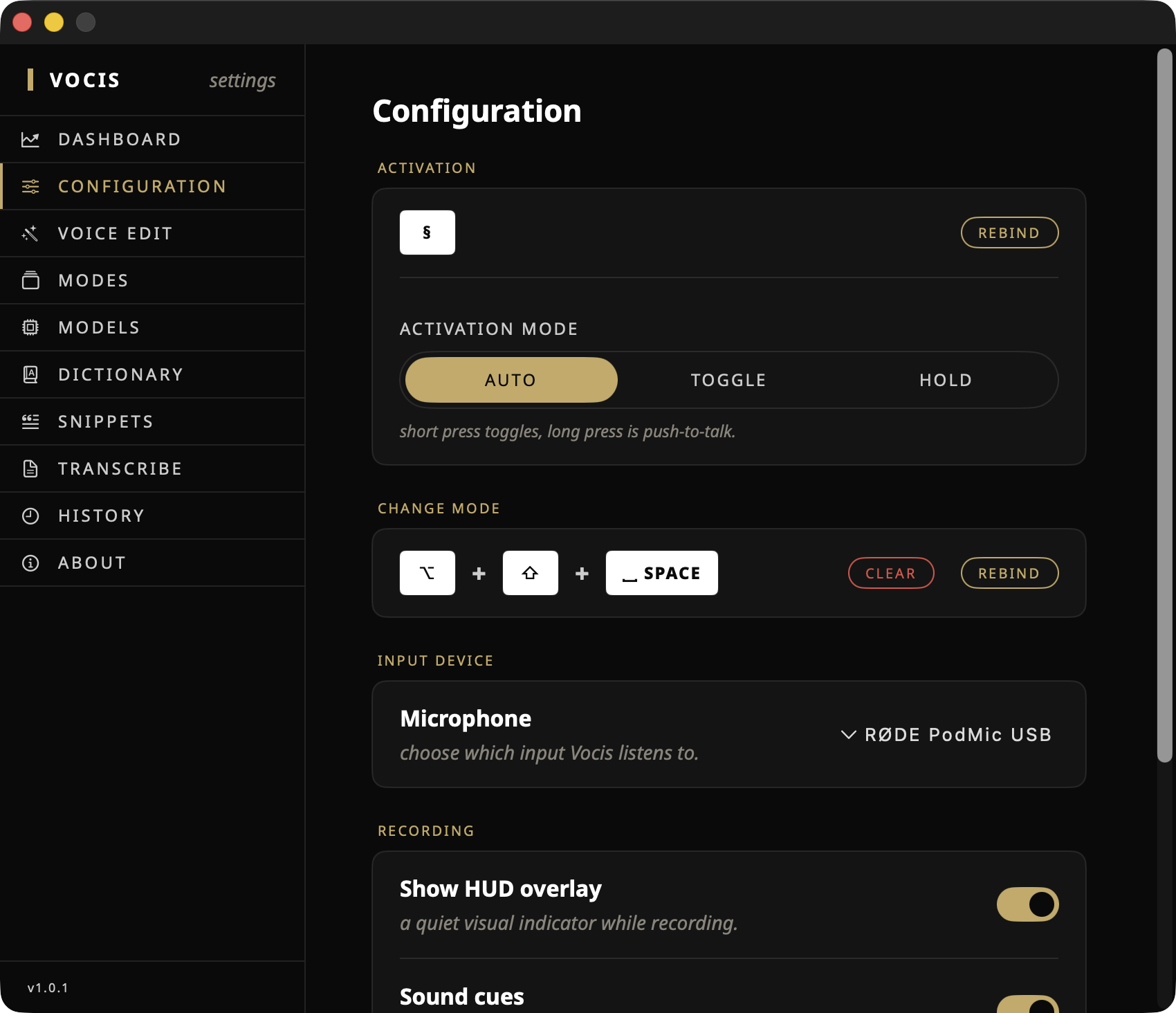
Use your configured shortcut, speak naturally, then stop. A compact HUD shows whether Vocis is recording or processing.
Vocis inserts the result at the cursor. The same text stays on your clipboard, ready to paste if an app prevents automatic insertion.
A shortcut that fits
A useful dictation shortcut should disappear into muscle memory. Vocis lets the same key combination behave three different ways.
A quick press toggles recording. Hold the shortcut for at least one second and it behaves like push-to-talk.
Press once to start and once again to stop. This leaves both hands free while you develop a longer thought.
Recording lasts only while the shortcut is held. Release it and transcription begins immediately.
Words fit for the task
Raw mode preserves the direct transcript. Tidy cleans punctuation and rough edges. Email gives a spoken message the shape readers expect.
Create a Custom mode with its own instructions and optional hotkey. Say a short snippet trigger to expand signatures, addresses, replies, or other text you use repeatedly.
When an app says no
Automatic insertion needs macOS Accessibility permission and a writable field. Some secure or unusual controls intentionally reject automated paste, but transcription does not disappear.
Enable Vocis under System Settings → Privacy & Security → Accessibility so the global shortcut and insertion can work.
Choose the destination before you dictate. Password fields and some protected controls may reject automated text insertion by design.
The completed transcript remains on the clipboard. Press Command-V in the destination if automatic insertion was unavailable.
Common questions
Yes. Accessibility lets the global shortcut work and allows Vocis to insert finished text into the active field. Microphone permission is also required to record your speech.
Yes. The default mode uses your main shortcut, and any other mode can have a dedicated shortcut so the right transformation starts immediately.
The completed text remains on your clipboard. Focus a writable field and paste it with Command-V.
Less switching. Less typing.